
Set up BelkaVPN on Edge
Add the BelkaVPN extension to Microsoft Edge, sign in, and connect to a secure server in three steps.
Set up BelkaVPN on Edge
The BelkaVPN extension brings one-click VPN protection to your Microsoft Edge toolbar — no separate app required. This guide covers installing it, signing in, and connecting.
[!NOTE] Before you start: you need a BelkaVPN account. If you don't have one yet, create an account first.
Quick summary
- Add the extension from the Microsoft Edge Add-ons store.
- Sign in with your BelkaVPN account.
- Choose a location and connect.
Step 1 — Install the extension
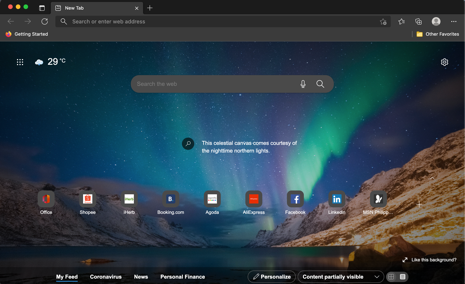
- Open Microsoft Edge and click the menu button (three dots) in the top-right corner.
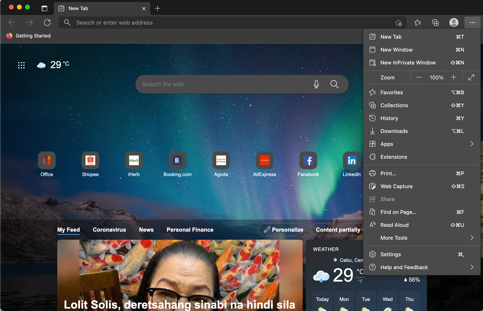
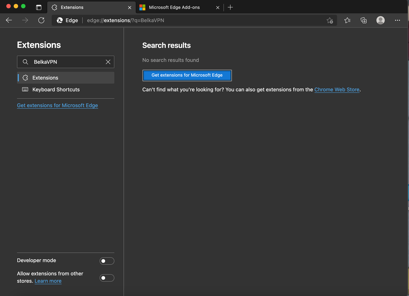
- Select Extensions, then click Get extensions from Microsoft Edge Add-ons.
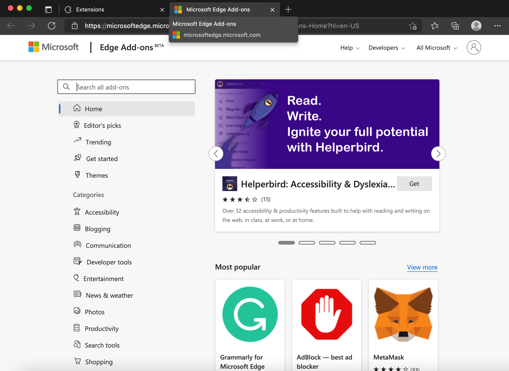
- Search for BelkaVPN and open the listing.
- Click Get.
- When Edge asks for permissions, confirm with Add extension.
[!TIP] After installing, click the puzzle-piece icon in the top-right of Edge and pin BelkaVPN so it's always one click away.
Step 2 — Sign in
- Click the BelkaVPN icon in your toolbar to open the extension.
- Enter the email and password for your BelkaVPN account.
- Select LOGIN.
[!NOTE] Forgot your password? Use the Forgot your password? link on the sign-in screen to reset it.
Step 3 — Connect
Open the Choose Location dropdown and pick a country. Free accounts can connect to the United States and Canada. Premium plans unlock every location.
Press the connect button. When the extension shows Connected to VPN, you're protected. Your active server and IP address (the number that identifies your device online) appear in the status area.
To disconnect, click the connect button again.
Troubleshooting
- The extension won't sign in. Confirm your subscription is active and your credentials are correct. Verify them by signing in at belkavpn.com.
- A site still shows your real location. Some sites detect your location through WebRTC, a browser feature that can leak your real IP. Turn WebRTC off in the extension, then reload the page.
- You can only pick the US or Canada. Those are the free locations. Upgrade to a paid plan to unlock all servers.