
Install BelkaVPN on Android TV
Install the BelkaVPN app on Android TV or Google TV from Google Play, sign in with a code from your phone or computer, choose a location, and connect.
Install BelkaVPN on Android TV
The BelkaVPN app works on Android TV and Google TV devices, including smart TVs, NVIDIA Shield, and Chromecast with Google TV. You don't type your password with the remote: the TV shows a short code, and you approve it from your phone or computer.
[!NOTE] Before you start: you need a BelkaVPN account with an active subscription, and a phone or computer to approve the sign-in. If you don't have an account yet, create one first. You can't create or renew a subscription in the TV app.
Quick summary
- Install BelkaVPN from Google Play on your TV.
- Open the app and scan the QR code, or visit the website shown on screen and enter the code.
- Turn the service on, and pick a location if you want a specific country.
Step 1 — Install from Google Play
- On your TV, open the Google Play Store (on Google TV, go to the Apps tab and select Search for apps).
- Search for BelkaVPN.
- Open the BelkaVPN listing and select Install.
When the install finishes, select Open, or launch BelkaVPN from your apps row.
Step 2 — Sign in with a code
When you open BelkaVPN, the app shows Two ways to sign in, together with a QR code and a sign-in code. Use either one:
- Scan QR code: point your phone's camera at the QR code on the TV and open the link.
- Visit website: on your phone or computer, go to the address shown under Sign in at, and enter the code shown on your TV when prompted.
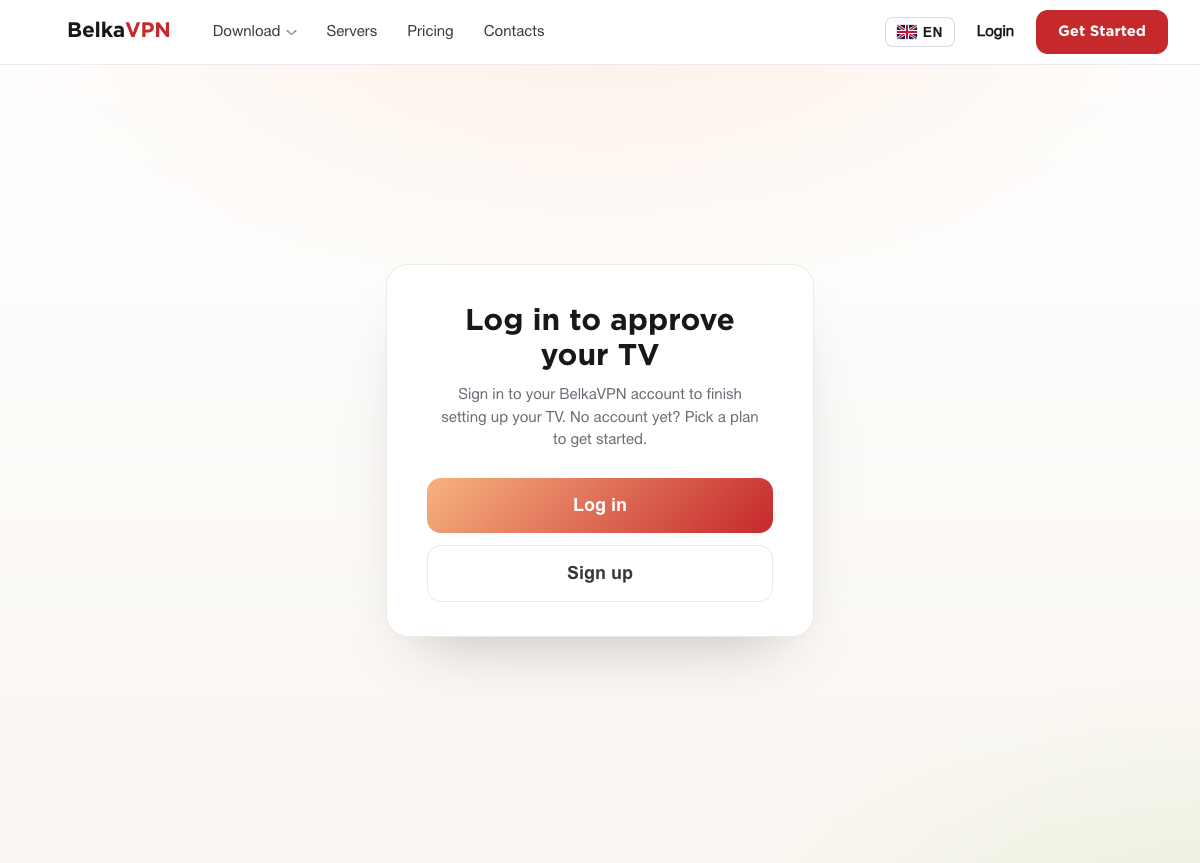
The website asks you to Log in to approve your TV. Sign in with your BelkaVPN email and password and approve the TV. You don't need to press anything on the TV: the app signs in automatically within a few seconds.
[!NOTE] The code is only valid for a few minutes. The TV shows a countdown (Code expires in) and fetches a new code automatically when it runs out. You can also select Get new code at any time.
Step 3 — Connect
The main screen shows three options: the service switch, Locations, and Settings.
- Select Service is OFF and press OK on your remote.
- The first time you connect, Android shows a Connection request to set up a VPN connection. Select OK to allow it.
When the switch shows Service is ON and the panel reads Connected to your location, your TV is protected. To disconnect, select the switch and press OK again.
Step 4 — Choose a location (optional)
By default, BelkaVPN picks a server for you. To choose a country yourself:
- On the main screen, select Locations.
- Browse the Locations row, or select the search icon to find a country by name. Locations you've used before appear under Recent.
- Select a location.
BelkaVPN returns to the main screen and connects to the new location straight away.
Manage your settings
Select Settings on the main screen to see which email you're Signed in as and adjust these options:
- Protocol: choose OpenVPN, Wireguard, or Wireguard, backoff OpenVPN (tries WireGuard first, then falls back to OpenVPN).
- Connect on boot: reconnect automatically when the TV starts. It's on by default.
- Allow LAN network: keep access to devices on your home network, such as a printer or media server, while connected.
To sign out, select Logout at the bottom of the list. The app returns to the sign-in code screen.
Troubleshooting
- The TV says "Could not reach the server". Check that your TV is connected to the internet, then select Get new code.
- You see "Subscription expired". Renew your plan at belkavpn.com from your phone or computer, then come back to the TV app.
- The app says VPN is not supported on your device. Some TVs don't allow VPN apps. Contact BelkaVPN through belkavpn.com for help.
- Streaming is slow or a location won't connect. Open Settings → Protocol and try a different protocol, or pick another location.
- You don't remember your password. Reset your password on the website, then approve the TV again.