
Install BelkaVPN on Apple TV
Install the BelkaVPN app on Apple TV from the App Store, sign in with a code from your phone or computer, choose a location, and connect.
Install BelkaVPN on Apple TV
The BelkaVPN app brings one-click VPN protection to your Apple TV, so you can stream privately from anywhere. You don't type your password with the remote: the TV shows a short code, and you approve it from your phone or computer.
[!NOTE] Before you start: you need a BelkaVPN account with an active subscription, and a phone or computer to approve the sign-in. If you don't have an account yet, create one first.
Quick summary
- Install BelkaVPN from the App Store on your Apple TV.
- Open the app and scan the QR code, or visit the website shown on screen and enter the code.
- Choose a location and press the connect button.
Step 1 — Install from the App Store
- On your Apple TV, open the App Store.
- Go to Search and enter BelkaVPN.
- Open the BelkaVPN listing and select Get to install it.
Once the download finishes, the BelkaVPN app appears on your Apple TV home screen.
Step 2 — Sign in with a code
Open BelkaVPN. The app shows Two ways to sign in, together with a QR code and a sign-in code. Use either one:
- Scan QR code: point your phone's camera at the QR code on the TV and open the link.
- Visit website: on your phone or computer, go to the address shown under Sign in at, and enter the code shown on your TV when prompted.
The website asks you to Log in to approve your TV. Sign in with your BelkaVPN email and password and approve the TV. The Apple TV app then signs in automatically.
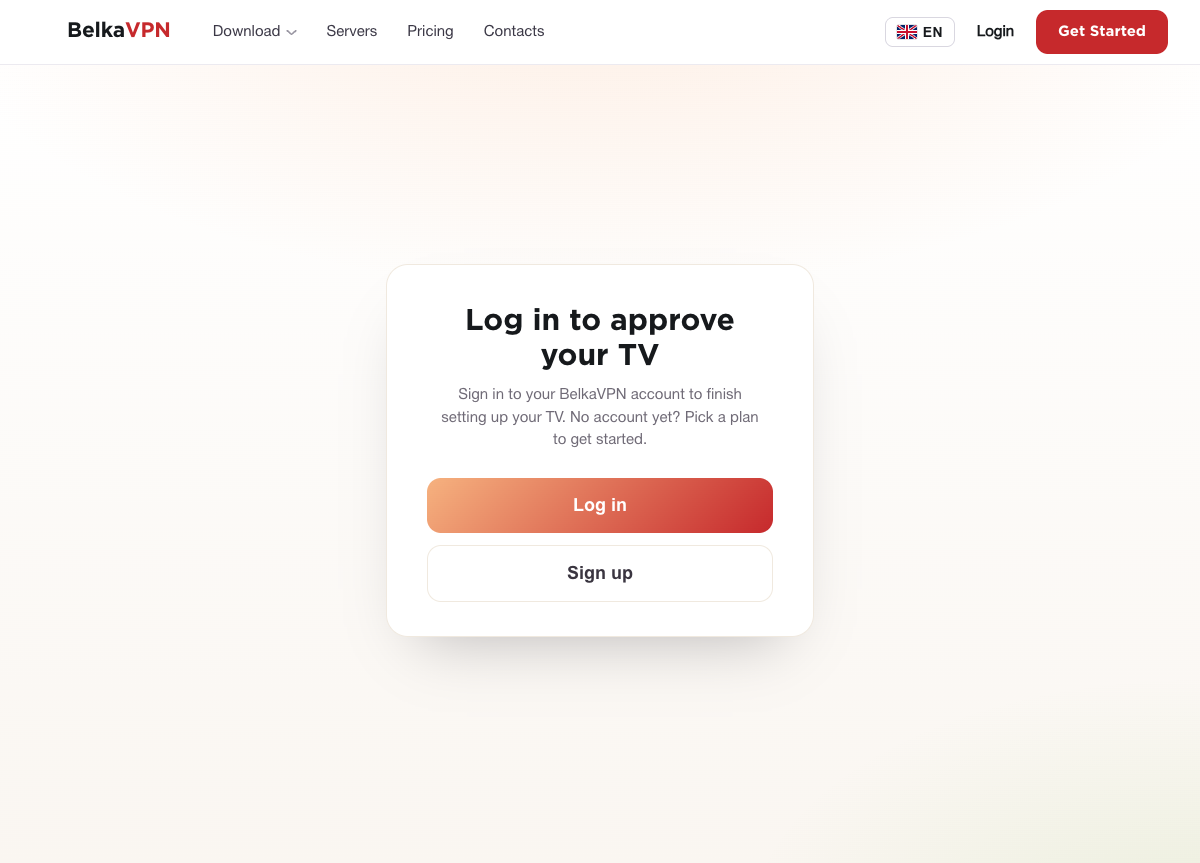
[!NOTE] The code is only valid for a few minutes. The TV shows a countdown (Code expires in). If it runs out, select Get new code on the TV and try again.
Step 3 — Choose a location
By default, BelkaVPN uses Automatic location and picks the best server for you. To choose a country yourself, select the location bar at the bottom of the home screen.
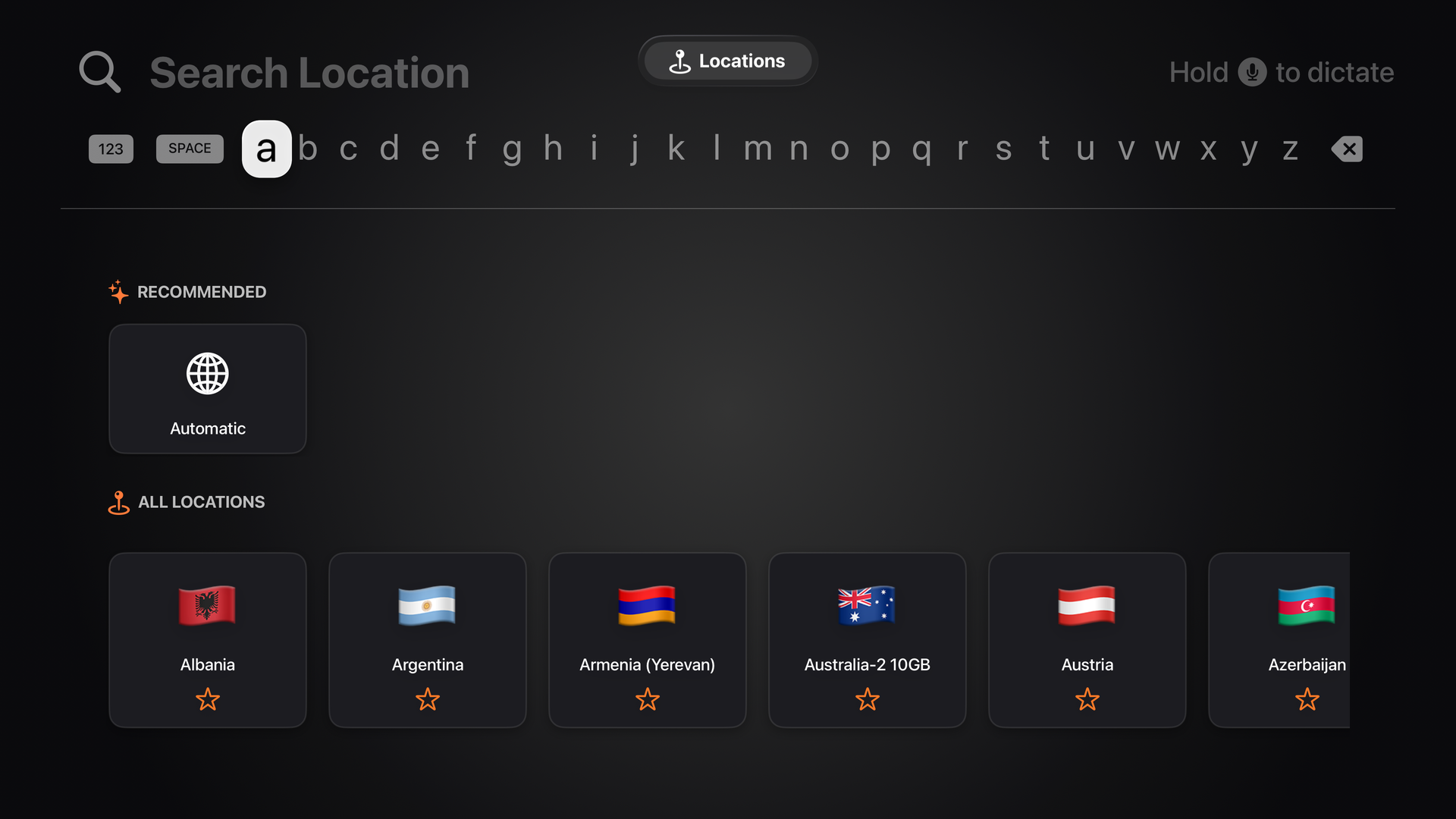
Scroll through All locations, or use Search Location at the top to filter the list, then select a location. Select the star on a location to add it to your favorites.
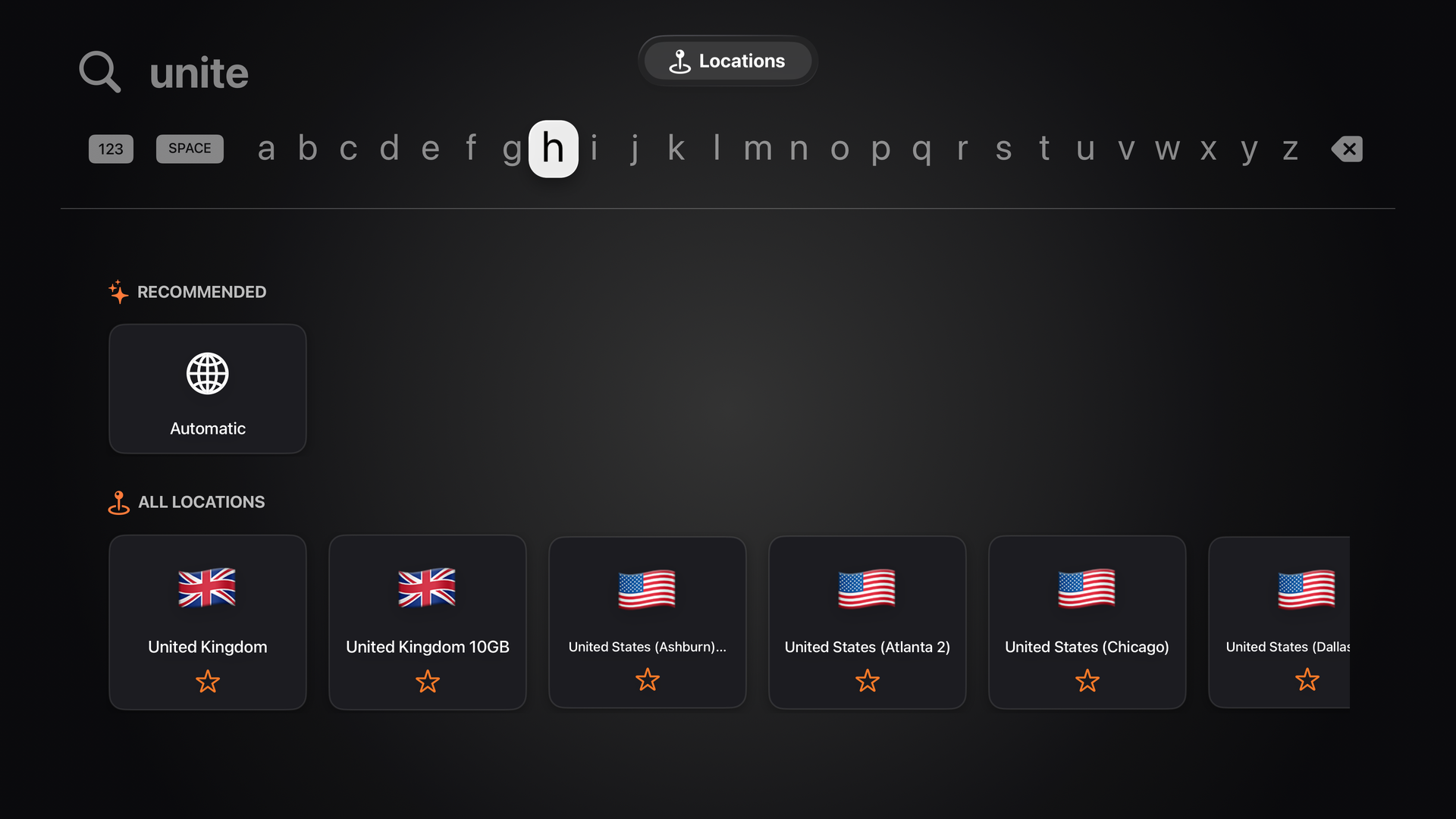
[!TIP] Typing with the remote is slow. Hold the microphone button on your Siri Remote to dictate the country name instead.
Step 4 — Connect
On the home screen, select the large power button labelled Press to connect to VPN. The first time you connect, tvOS asks for permission to add a VPN configuration. Select Allow to continue.
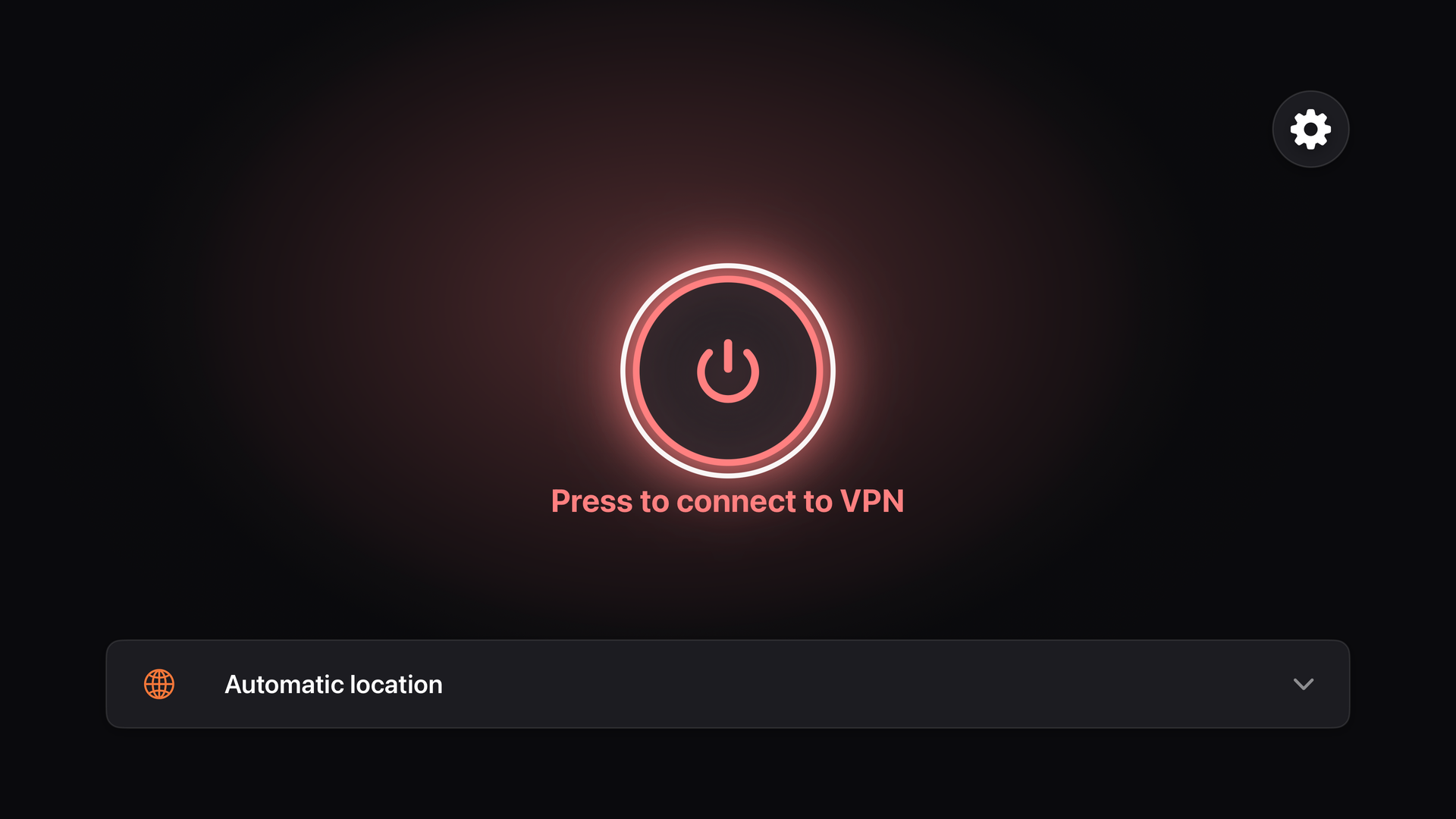
When the status changes to Connected to VPN., your Apple TV is protected. To disconnect, select the power button again.
Manage your account
Select the gear icon in the top-right corner of the home screen to open Settings. Here you can see which email you're Signed in as, check when your subscription is Active until, and Sign Out.
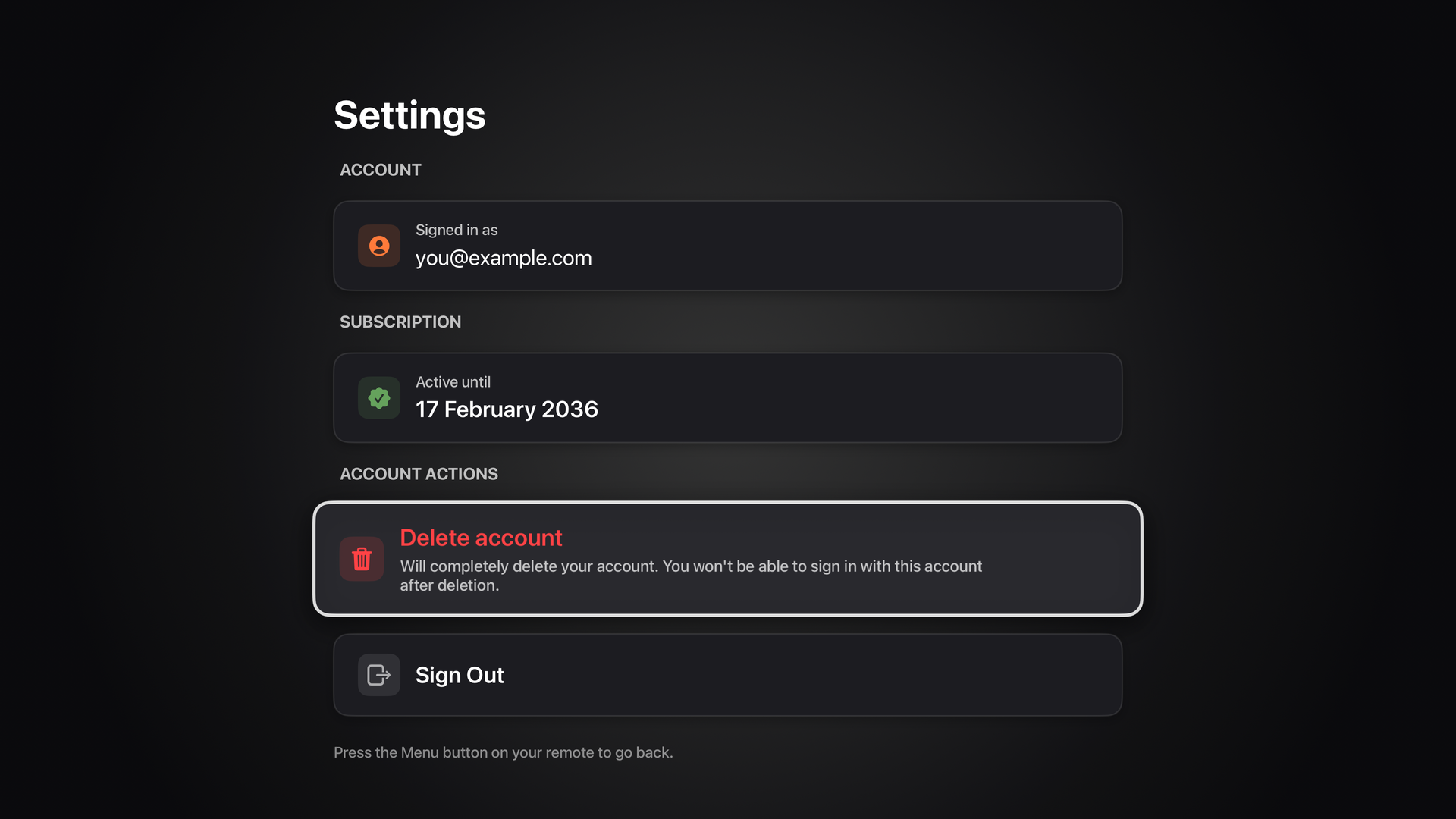
Press the Menu button on your remote to go back to the home screen.
Troubleshooting
- The sign-in code expired. Select Get new code on your TV, then scan the new QR code or enter the new code on the website.
- The app says it couldn't reach BelkaVPN. Check that your Apple TV is connected to the internet, then select Try Again.
- You can't connect. Open Settings in the app and check that your subscription is active. If it has expired, renew it at belkavpn.com, then try again.
- You don't remember your password. Reset your password on the website, then approve the TV again.