
Manual OpenVPN setup on iOS
Download an OpenVPN config from your BelkaVPN dashboard, import it into OpenVPN Connect, and connect — in three steps.
Manual OpenVPN setup on iOS
OpenVPN is a widely used, reliable VPN protocol. This guide sets it up manually on your iPhone or iPad in three steps: install the OpenVPN Connect app, download a config file from your BelkaVPN account, and import it to connect. A config file is a small file that tells the app how to connect.
[!NOTE] Before you start: you need a BelkaVPN account and the OpenVPN Connect app from the App Store. If you don't have an account yet, create one first, then install OpenVPN Connect from the App Store.
Quick summary
- Install the OpenVPN Connect app and agree to its terms.
- Download an OpenVPN config from your BelkaVPN dashboard.
- Import the config into OpenVPN Connect and connect.
Step 1 — Install OpenVPN Connect
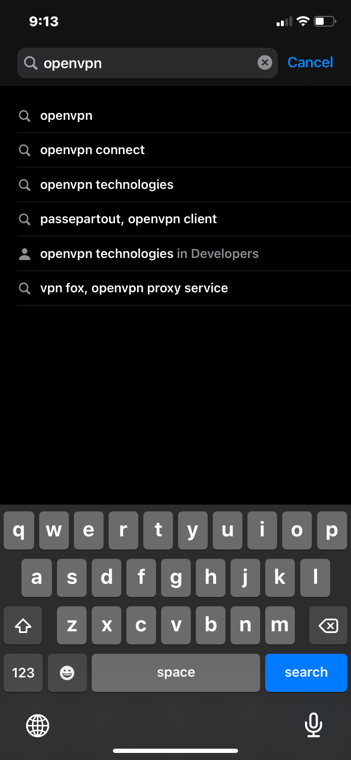
- Open the App Store on your device.
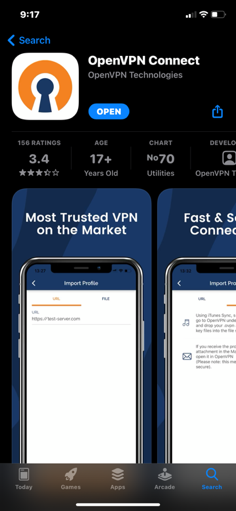
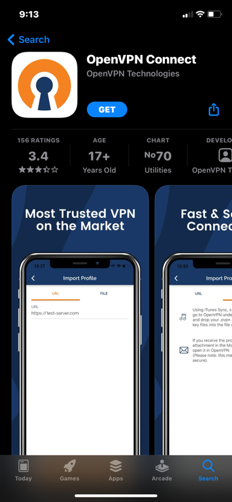
- Search for OpenVPN and install the OpenVPN Connect app.
- Open the app once it's installed.
Step 2 — Agree to the terms
The first time you open OpenVPN Connect, it shows a few setup prompts.
- Tap Allow on the permission prompt.
- Tap AGREE at the bottom to accept the terms.
You'll then see the OpenVPN main screen. It offers two ways to import a profile: by file or by URL. This guide uses a file you download from your BelkaVPN account.
Step 3 — Download your OpenVPN config
You create the config in your web browser, using your BelkaVPN account. You don't need to do this from inside the app.
- Open Safari and go to belkavpn.com. Log in with your email and password.
- Open the Dashboard Menu, then tap Download.
- Scroll down to the Config Generator.
- Select your country.
- Tap the OpenVPN UDP button. If asked whether to download or view the file, tap Download.
[!NOTE] The legacy dashboard used a Config Generator with four buttons (OpenVPN UDP being one of them). On the current site the path is belkavpn.com → your account → configs — if you can't find the Config Generator by that name, look for the config or download section of your account dashboard.
The config file downloads and appears in the download indicator in the top-right corner of Safari.
Step 4 — Import the config and connect
- Tap the downloaded config file to open it.
- Tap the share icon (the square with an upward arrow) in the top-right corner.
- In the share sheet, tap OpenVPN (next to AirDrop and Messages). OpenVPN Connect opens automatically.
- Tap ADD (the orange text on the left) to add the profile.
- Enter your email and password, then turn on the Save password and Connect after import checkboxes.
- Tap ADD in the top-right corner. When a notification appears, confirm it.
[!TIP] With Connect after import turned on, the app connects for you as soon as the profile is added — there's nothing else to tap.

When the connection toggle turns green, you're connected.
Troubleshooting
- The import doesn't open OpenVPN Connect. Make sure the app is installed, then tap the config's share icon again and choose OpenVPN from the share sheet.
- It won't connect after import. Confirm you entered the correct email and password, and that Connect after import was checked. You can also tap the profile and connect manually.
- Can't sign in to the dashboard. Confirm your subscription is active and your credentials are correct by signing in at belkavpn.com.