
Install WireGuard on Android
Import a BelkaVPN WireGuard config into the official WireGuard app on Android and connect in a few steps.
Install WireGuard on Android
WireGuard is a fast, modern VPN protocol, and BelkaVPN supports it out of the box. In this guide you'll install the official WireGuard app, generate a BelkaVPN config file (the small file that holds your connection settings), and import it to connect. It only takes a few minutes.
[!NOTE] Before you start: you need an active BelkaVPN account. If you don't have one yet, create an account first.
Quick summary
- Install the official WireGuard app from Google Play.
- Generate a WireGuard config in your BelkaVPN account.
- Import the downloaded config file into WireGuard.
- Switch the tunnel on.
Step 1 — Install the WireGuard app
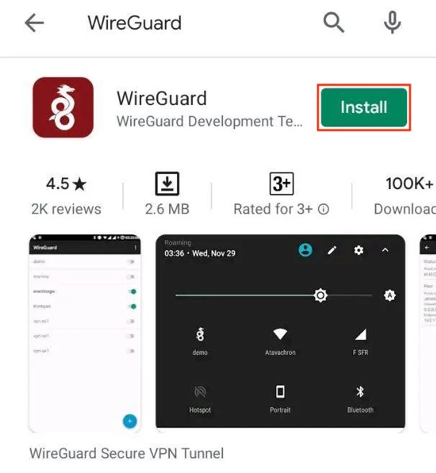
- Open the Google Play Store on your Android device.
- Search for WireGuard.
- Open the official app by WireGuard Development Team.
- Tap Install.
- Open the app once it finishes installing.
Step 2 — Generate your WireGuard config
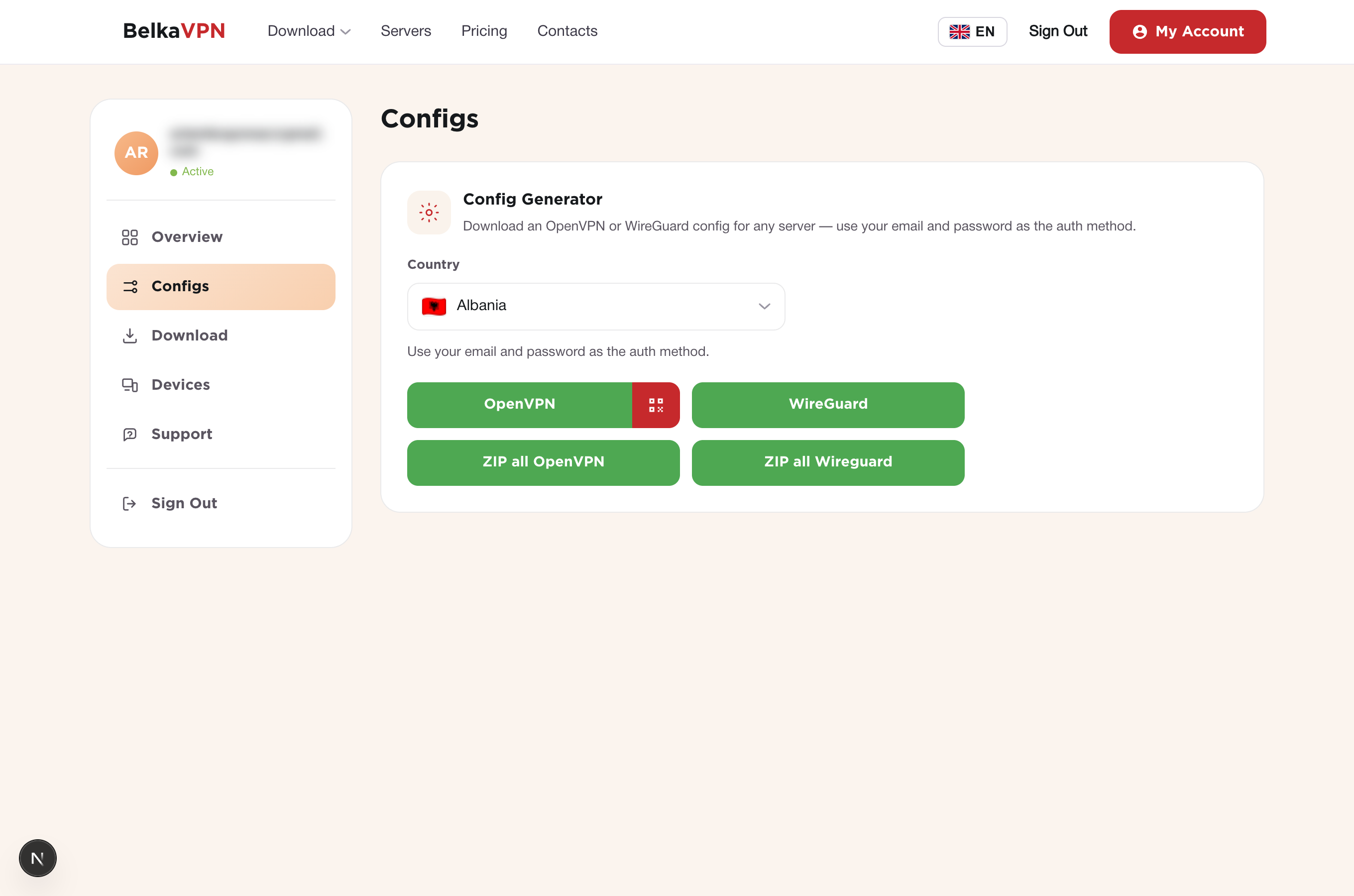
- Go to belkavpn.com and sign in to your account.
- Open your account's configs section.
- Select the country you want to connect to.
- Tap the WireGuard button. The config file downloads to your device right away.
[!NOTE] The exact dashboard path may differ on the current site. Sign in at belkavpn.com, open your account → configs, and look for the config generator. If you can't find it, contact BelkaVPN support.
Step 3 — Import the config into WireGuard
- Return to the WireGuard app.
- Tap the blue + button to add a tunnel (a "tunnel" is a saved VPN connection).
- Choose Import from file or archive.
- Select the config file you just downloaded.
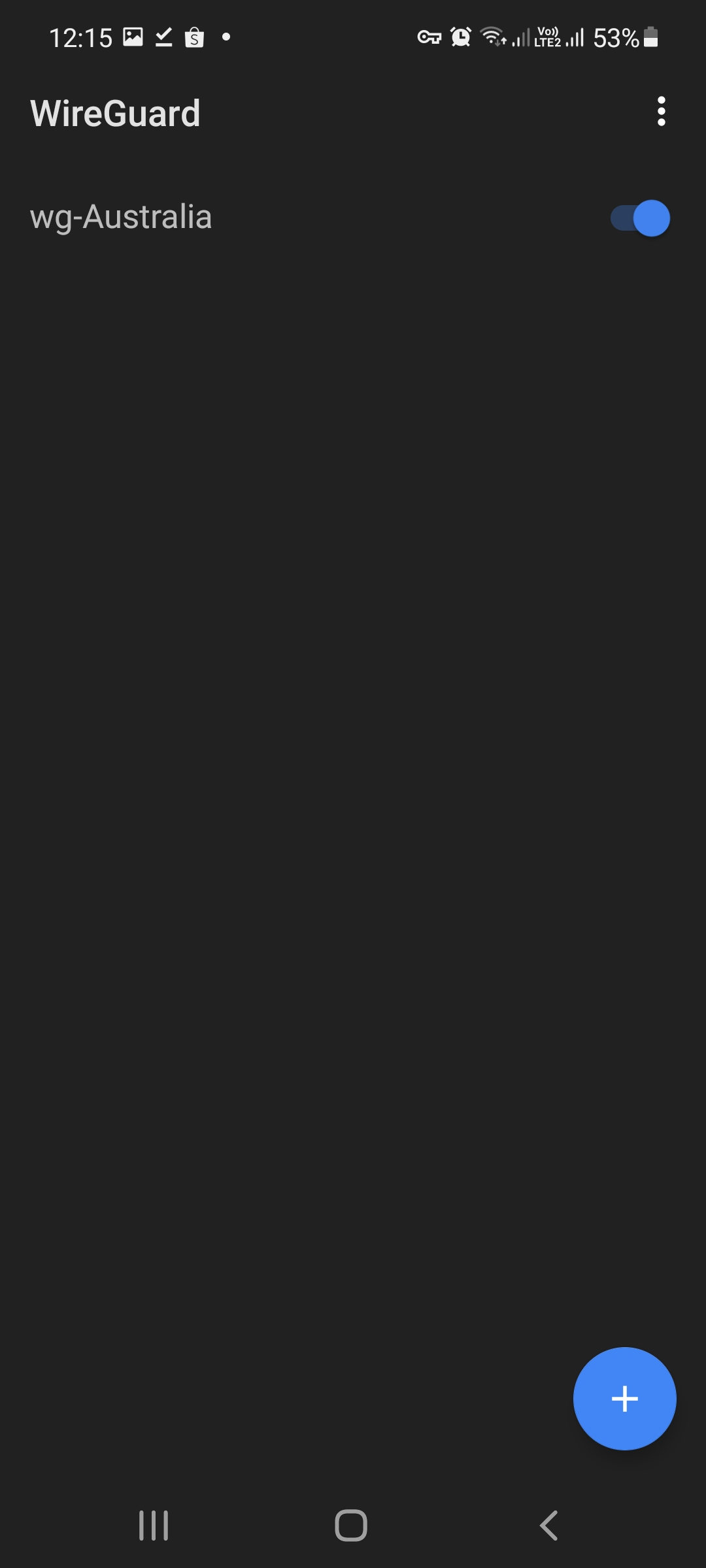
Once imported, the tunnel appears in your list. You can tap it to review the details, but that step is optional.
Step 4 — Turn on the VPN
Tap the switch next to the tunnel to connect. The first time, Android asks permission to set up a VPN connection. This is normal, so tap to allow it.

That's it — you're connected to BelkaVPN over WireGuard.
Troubleshooting
- The config file won't import. Make sure you downloaded a WireGuard config (not OpenVPN). Re-generate it from your BelkaVPN account and try importing again.
- The tunnel switches off immediately. Confirm your subscription is active, and check that another VPN or tunnel isn't already running on the device.
- You can't find the config generator. Sign in at belkavpn.com and open your account's configs section, or contact BelkaVPN support for the current path.